I want to try running a translation model locally on a Windows computer using llama.cpp, to translate some Chinese content into English. After working on it all morning, I finally managed to install it. I had used Ollama on Windows before; referring to the previous article, Ollama Installing the Google Gemma 3n Model. Overall, llama.cpp is a little more complicated than Ollama, but the difference isn’t significant.
“Llama” means alpaca 🦙….
Download llama.cpp
Since I want to specify the installation directory, as there isn’t much space left on the system drive C of this old computer. Therefore, I didn’t use a PowerShell command for installation; instead, I directly downloaded the exe executable file. Download link:
https://github.com/ggml-org/llama.cpp/releases
I found the Windows x64 (CPU) version and downloaded it directly. The biggest surprise was that this zip package is only 19M in size, much smaller than the installation package for ollama. I remember ollama’s installation package being over 700M in size. After extracting it, I can use it right away. There are several exe files inside; I’ll explain their functions later.
Then, I set the extraction directory of llama.cpp to the system’s PATH environment variables, so it can be called directly from the command line.
Download the model
Just downloading llama.cpp doesn’t do anything; a model is still missing. The official recommended command for installing a model is:
# Download and run a model directly from Hugging Face
llama cli -hf ggml-org/Qwen3.5-0.8B-GGUF

# Launch OpenAI-compatible API server
llama serve -hf ggml-org/Qwen3.5-0.8B-GGUF
However, it’s important to note that Hugging Face isn’t directly accessible in China. Therefore, you’ll need to find a mirror site.
https://modelscope.cn
Once you open the site, search for the model you want to install. For example, if you want to install Hy-MT2-1.8B, simply search for:
https://modelscope.cn/models/Tencent-Hunyuan/Hy-MT2-1.8B-GGUF
Click to download the model. Follow the prompts to install the Python dependencies first:
pip install modelscope
Then use the installed modelscope to download the model:
modelscope download --model Tencent-Hunyuan/Hy-MT2-1.8B-GGUF README.md --local_dir ./dir
Replace README.md with the file name of your .gguf file you want to download. This model weighs around 1GB.
Run It
Execute
llama-server -m Hy-MT2-1.8B-Q6_K.gguf --port 8080
You will see the following messages:
0.00.003.588 I srv  llama_server: initializing ...
0.00.022.599 I cmn  common_param: common_params_print_info: verbosity = 3 (adjust with the `-lv N` CLI arg)
0.00.023.015 W srv  llama_server: security: no API key is set and CORS allows all origins (see https://github.com/ggml-org/llama.cpp/pull/25655)
0.00.029.825 I srv    load_model: loading model 'Hy-MT2-1.8B-Q6_K.gguf'
0.00.851.910 W load: special_eos_id is not in special_eog_ids - the tokenizer config may be incorrect
0.04.102.178 I cmn          init: llama threadpool init, n_threads = 6
0.38.440.620 I srv    load_model: initializing, n_slots = 4, n_ctx_slot = 216064, kv_unified = 'true'
0.38.547.017 I srv  llama_server: model loaded
0.38.547.623 I srv  llama_server: listening on http://127.0.0.1:8080
When you see “listening on http://127.0.0.1:8080”, it means it’s running (wait a few seconds). Now you can use it in your browser.
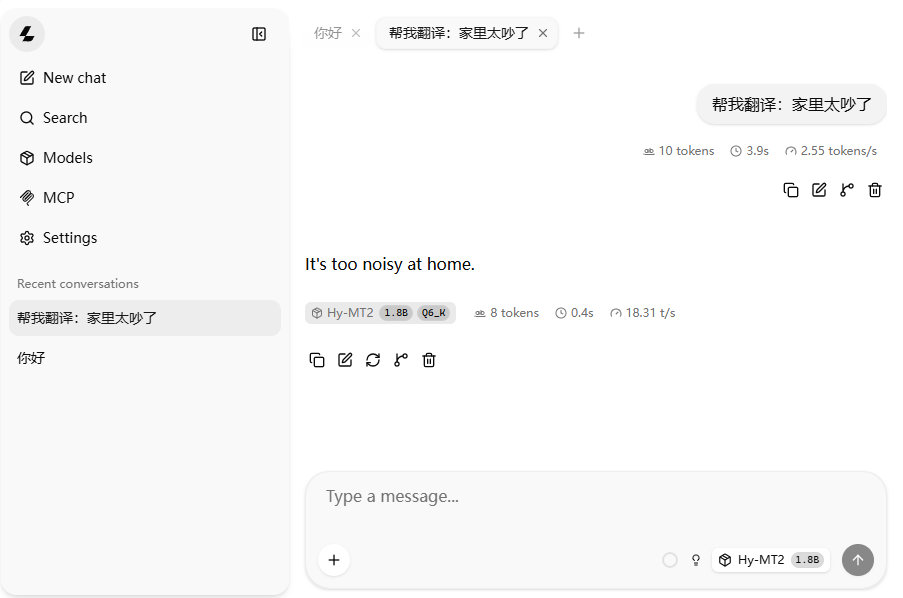
The interface is similar to the DeepSeek web version. I’ll test how to call it with Python later, so you can automatically run some translation tasks locally.